Know why a Carrier cancelled an Order, in your own words.
Why it matters
When a carrier cancels an order, the reason behind it determines what you do next. If a driver couldn't reach the consumer, the Order likely needs to be rescheduled. If the Customer refused the delivery, it shouldn't be. The action only makes sense if the reason is clear.
Today, Carriers report cancellation reasons differently. Some provide unique reason codes or IDs, others simply pass along reason text or driver notes with no connection to the reasons you track. Either way, you're left reconciling reasons by hand.
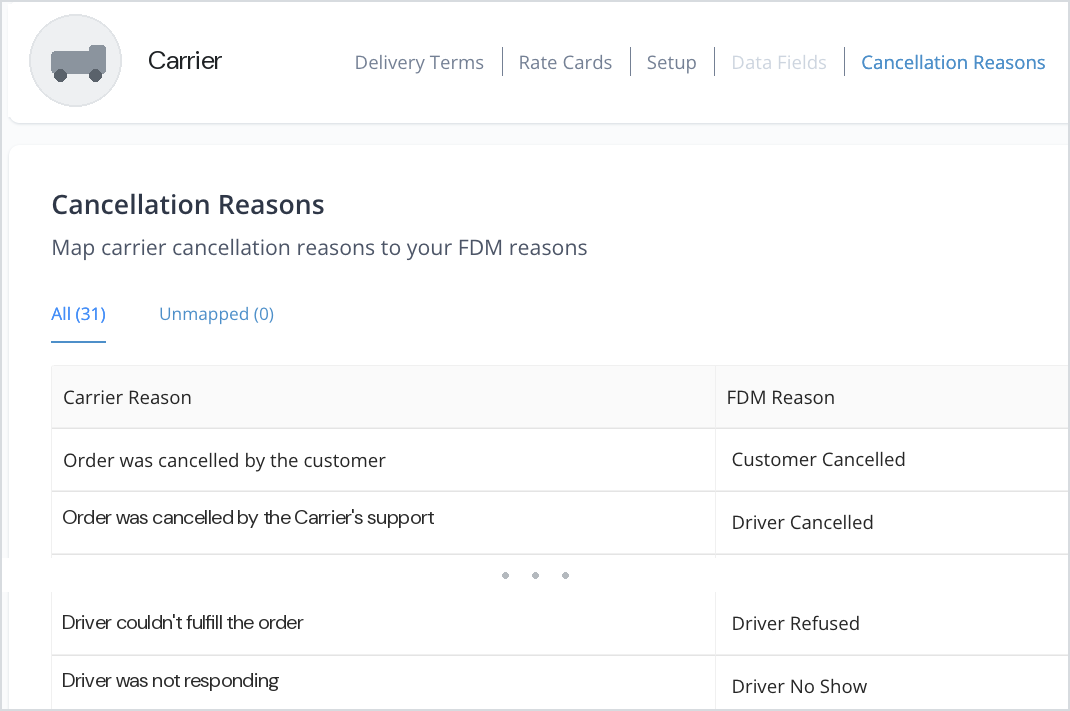
Cancellation Reason Mapping closes that gap: you decide how each Carrier's cancellation reasons map to your own, once, in the UI, no coordination with the Carrier required.
How it helps
- Consistent reasons across every Carrier — Map each Carrier's cancellation reason to a Bringg reason you already use, so every cancellation lands somewhere familiar, regardless of which Carrier sent it.
- Automate with confidence — Because reasons are consistent, your Automations and reports can key off a mapped Bringg reason instead of guessing at Carrier-specific text.
- Nothing gets lost in translation — The Carrier's original reason ID, title, and notes stay attached to your mapped reason.
- Set it up your way — Bringg reasons are selected from a dropdown; Carrier reasons are entered as free text, since Carriers describe cancellations in their own words.
Getting started
- Step 1: Go to My Carriers.
- Step 2: Select the Carrier you want to configure, and open its Fleet Settings.
- Step 3: Open the Cancellation Reasons tab.
- Step 4: For each Carrier cancellation reason, choose the matching Bringg cancellation reason from the dropdown, and add Carrier notes for extra context if useful.
- Step 5: Save. From then on, cancellations from this Carrier automatically map to your chosen reason.
Don't see the Cancellation Reasons tab under Fleet Settings? Reach out to your Bringg contact to have it enabled for your Carrier Network.
Good to know
- What's a Bringg reason? It's the same thing the product calls an FDM reason (FDM = Failed Delivery Manager) — the cancellation reasons you've already configured under Settings → Merchant Configuration → Cancellation Flow Mapping. That's the list this dropdown pulls from.
- Mapping is configured per Carrier — set it up for each Carrier that sends you cancellation reasons.
- Some Bringg reasons create a linked return Order with a different ID; continuing updates on the original order after that isn't covered by this mapping today.